Motion control is one of the fastest ways to make AI video look less static and more believable. Instead of asking a model to invent every gesture from scratch, you guide the output with clear motion information so the final animation feels intentional, readable, and much closer to a real performance. That matters whether you are making short-form creator content, brand mascot videos, product explainers, or stylized character clips for social media.
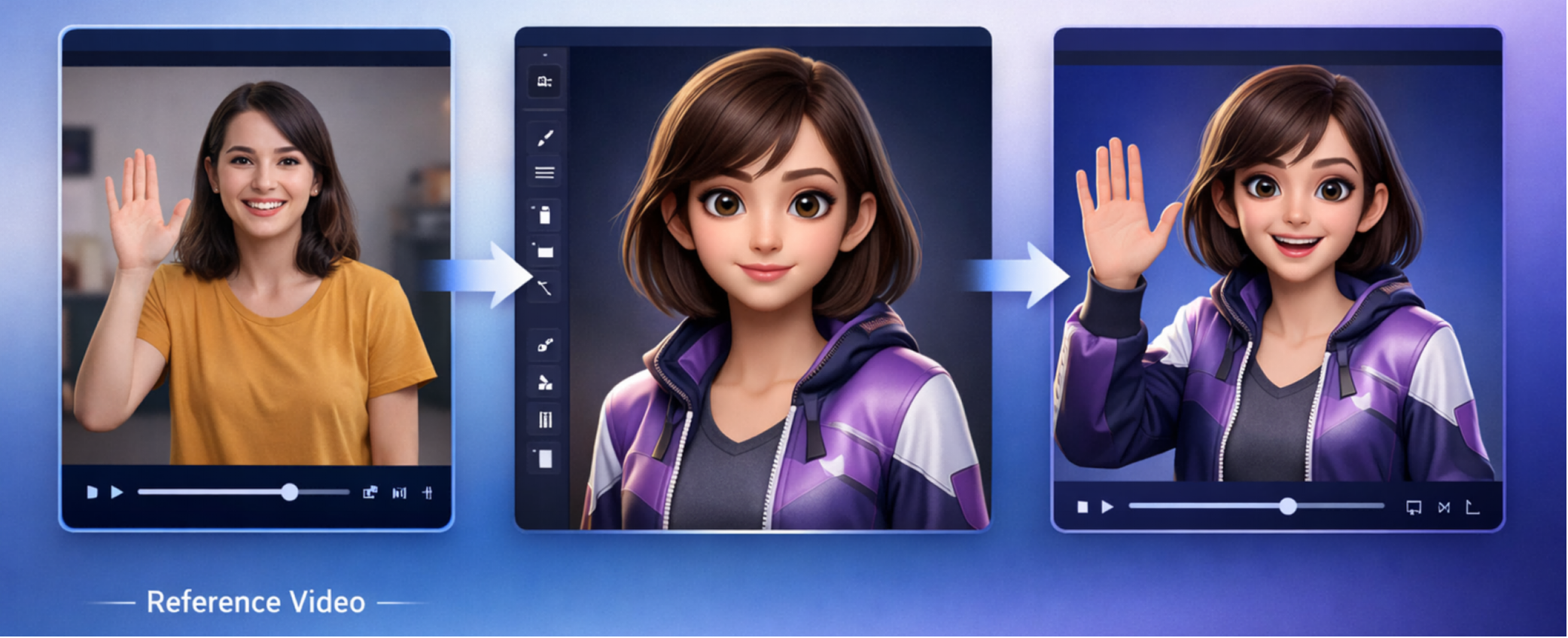
On [Video Swap](https://www.videoswap.app/), this workflow is built around motion transfer. You upload a character image, then upload a reference video with the movement or expression you want to replicate. The system analyzes the motion pattern in the clip and applies it to your character while trying to keep the character identity consistent. In practical terms, that means you can turn a still image into a moving performance without filming the final character directly.
## **1.What AI motion control means in practice**
The phrase motion control can mean different things across AI video tools. Sometimes it refers to camera movement. Sometimes it means path control or pose guidance. On Video Swap, the clearest definition is motion transfer from a reference clip to a character image. The reference video acts as the movement blueprint, while the uploaded image defines who the character is.
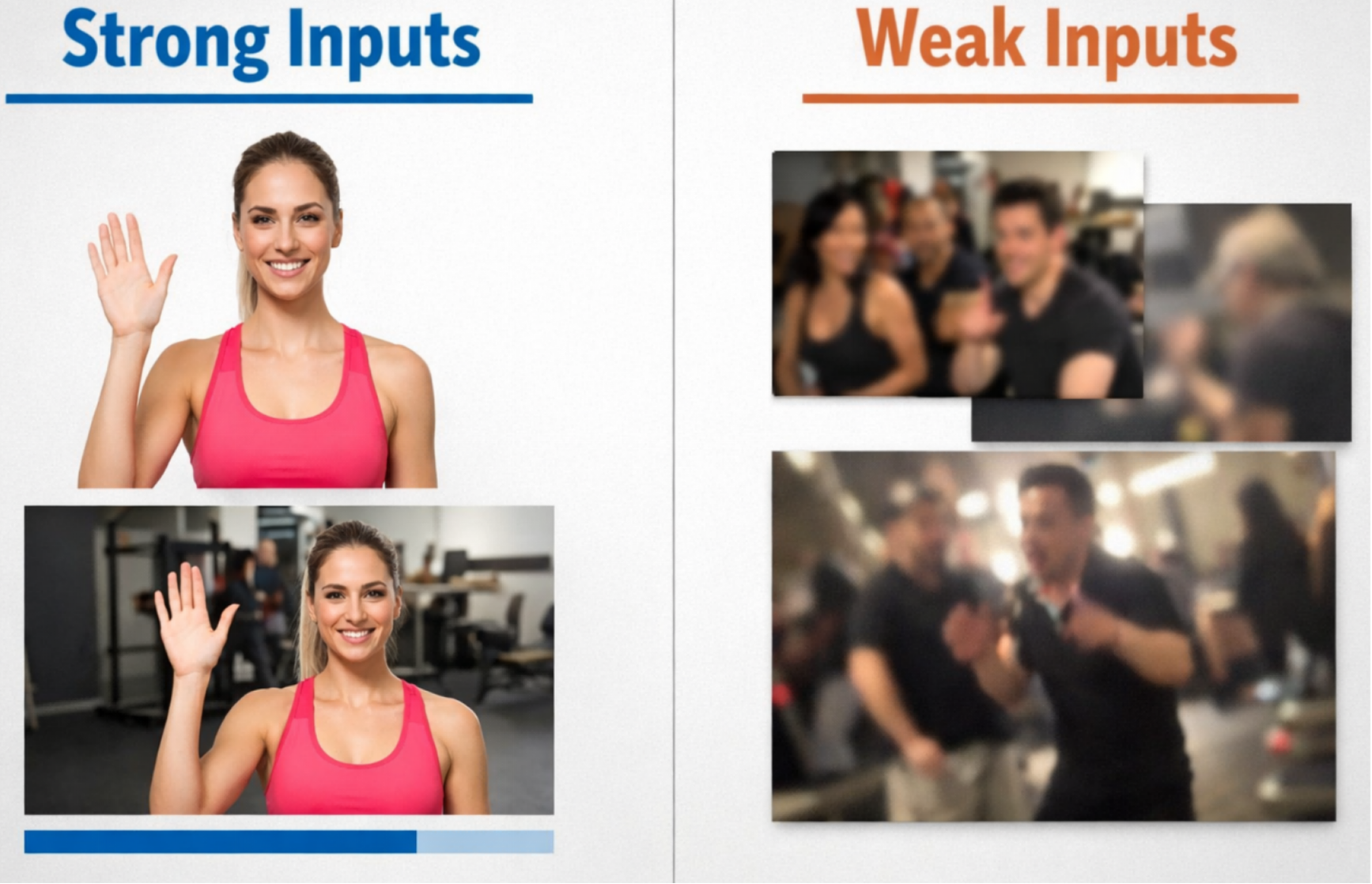
That distinction matters because it changes how you prepare assets. You do not need a long script or a complicated prompt to describe every hand movement. Instead, the quality of your input materials becomes the biggest factor. A clear image with one subject, even lighting, and clean framing gives the model a stable identity to animate. A short reference clip with the exact gesture, dance move, expression, or body action you want gives the model a cleaner motion signal to follow.
## **2.How to add motion control to AI video with Video Swap**
Step one is choosing the right reference video. Start with a clip that contains the motion you actually want to keep. If the goal is a wave, use a clean wave. If the goal is a dance, isolate the most useful section of the choreography instead of uploading a longer clip with extra movement before and after the key action. In most cases, shorter and cleaner inputs make testing easier and reduce the chance of mixed or inconsistent results.
Step two is preparing the character image. Pick a high-quality image with one clear subject, balanced lighting, and a pose that broadly matches the framing of the reference video. If your clip is full-body, a full-body character image usually works better. If your clip is more portrait-based and focused on expressions, a tighter crop often makes more sense. Matching portrait, half-body, or full-body framing helps the generated motion feel more natural.
Step three is uploading both assets to the AI Motion Control page. On Video Swap, the process is straightforward: upload the reference video, upload the character image, select a generation mode, and render the result. The platform explains the workflow in simple steps, which is useful if you are testing multiple creative directions quickly.
Step four is reviewing the first output like an editor, not just a generator user. Look at timing, facial expression, hand shape, body stability, and whether the motion still matches the character design. If something feels off, do not immediately change everything. Usually the best next move is to tighten the reference clip, swap to a cleaner source image, or choose a better framing match. Small adjustments often improve motion consistency much more than a total restart.
## **3.Best practices for better motion transfer results**
The first best practice is to use reference clips with stable visibility. If the performer is heavily occluded, turns fully away from camera, or exits the frame too often, the motion signal becomes harder to follow. A stable camera and readable body movement usually produce cleaner character animation.
The second best practice is to match energy and structure between the image and the motion. If you upload a highly stylized fantasy warrior but the reference clip is a loose, casual talking-head gesture, the result may feel emotionally mismatched even if the mechanics work. Better results usually come from pairing a character concept and a motion style that belong together.
The third best practice is to separate testing from final production. Start with one simple motion such as a turn, a nod, a walk cycle, or a short gesture. Once you know the character holds together well, move to more complex actions like dancing, performance beats, or fast arm movement. This reduces wasted credits and helps you learn what the system handles best for your use case.
## **4. Common mistakes to avoid**
One common mistake is using an image with too many distractions. Busy backgrounds, multiple faces, hard shadows, or filters can make identity tracking less reliable. Another mistake is using a reference clip that contains several different actions when you only need one. If the motion changes too often, the output can lose clarity.
Another frequent issue is forcing a mismatch between composition types. A close-up face image paired with a full-body dance video may lead to awkward results because the system has to infer too much missing body information. The opposite problem can happen too: a distant full-body image paired with a subtle expression clip may waste the detail you actually want.
Finally, creators often skip iteration. Motion control works best as a guided workflow. Your first generation is a test, not the final answer. Trim the clip, replace the image, compare modes, and keep the strongest take.
## **5.Where motion control is most useful**
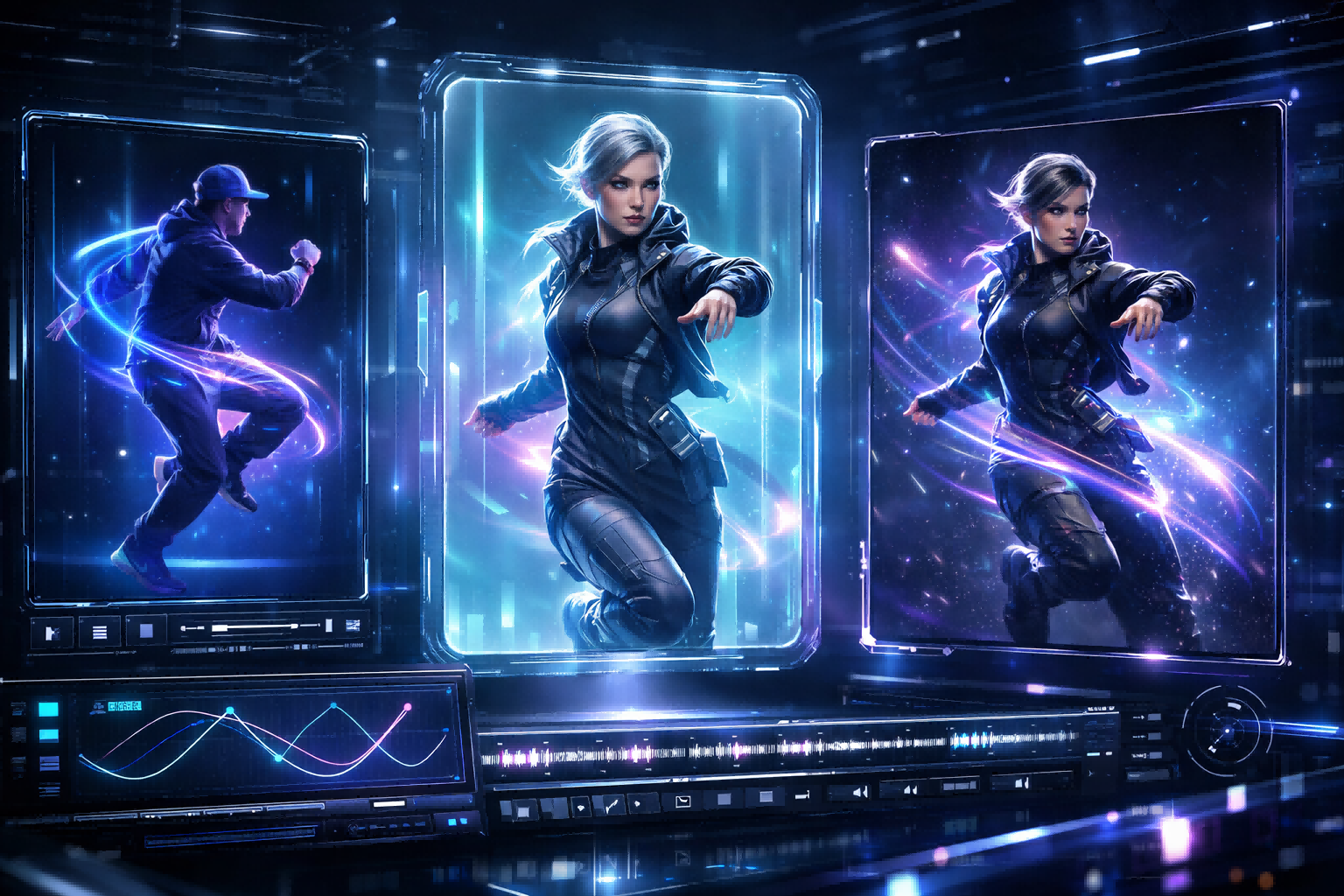
This feature is especially valuable for creator templates, dance clips, stylized performance videos, anime and game character animation, and brand mascots. If you need to reuse one performance across several visual identities, motion control saves time because you do not need to manually animate each variation from scratch. It also gives marketing teams a faster way to test multiple character styles while preserving a consistent performance beat.
That makes Video Swap's AI Motion Control page a strong destination for internal linking. In the published article, link naturally to the product page with anchor text such as AI Motion Control, motion transfer video tool, or control character movement. This keeps the blog useful for readers while guiding high-intent traffic to the feature page: [<u>https://www.videoswap.app/ai-motion-control</u>](https://www.videoswap.app/ai-motion-control).
## **6.Conclusion**
If you want better AI animation, the goal is not more randomness. The goal is better control. Motion control gives you that by combining a stable character image with a reference video that already contains the movement you want. On Video Swap, the workflow is simple enough for fast testing but strong enough for creator content, mascot animation, and stylized short-form video production.
Start with a clear image, choose a short reference clip with readable motion, match the framing, and improve the result through small iterations. When you do that, motion transfer stops feeling like a gimmick and starts becoming a repeatable production workflow. Ready to test it? Try Video Swap's AI Motion Control tool and turn a static character into a performance-driven video in minutes.
Link:[AI Motion Control](https://www.videoswap.app/ai-motion-control)
How to Add Motion Control to AI Video
March 13, 2026
Featured Post
Learn how to add motion control to AI video with a character image and reference clip. Improve motion transfer, animation quality, and consistency.
ai motion control
Related Posts
Public
Jul 24, 2026
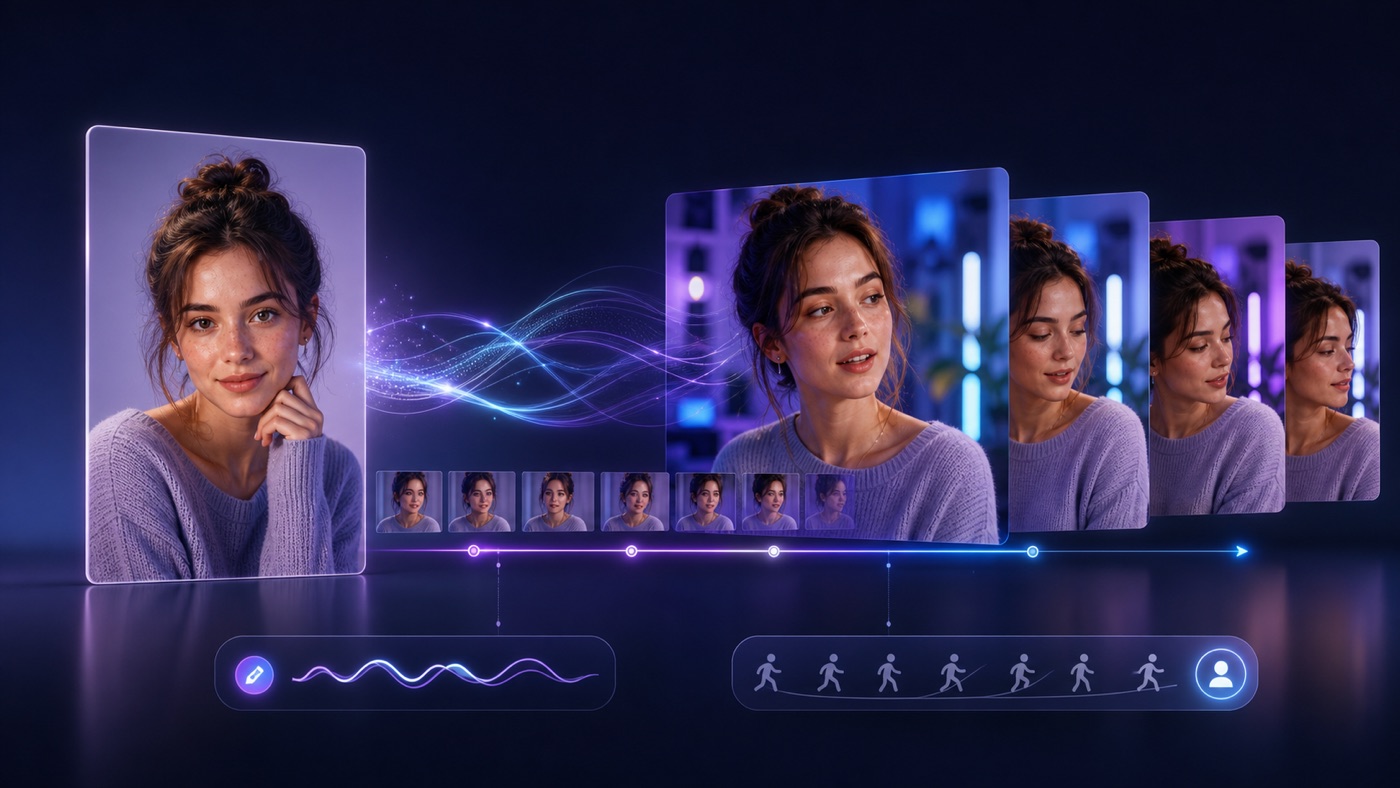
How to Animate a Photo with AI: Text Prompts vs Motion Control
Learn how to animate a photo with AI using text prompts or reference-video motion control, and choose the right workflow for your project.
Public
Mar 15, 2026
Character Swap vs Motion Control vs Style Transfer: Which AI Video Tool Do You Need?
Compare AI character swap, motion control, and video style transfer to find the right AI video tool for ads, creators, animation, and branded content. Learn what each tool does, when to use it, and how VideoSwap helps you create consistent, high-quality AI videos faster.