AI video style transfer is one of the fastest ways to make familiar footage feel new again. Instead of reshooting, rebuilding scenes in 3D, or grading every shot by hand, creators can restyle an existing clip into anime, cinematic, cartoon, painted, or other custom looks with video-to-video AI. That is especially useful for short-form creators, ad teams, music video editors, and brand marketers who need multiple creative directions from the same source footage.
## **1.What AI video style transfer actually does**
AI video style transfer changes the visual language of a clip while preserving the core structure of the original footage. Good tools do not just place a filter on top. They try to keep motion, timing, scene layout, and camera movement readable while changing texture, color, lighting, outlines, materials, or the overall aesthetic direction.
This is where temporal consistency matters. Research on video style transfer has long shown that transforming frames one by one can cause visible flicker because adjacent frames stop matching each other. In creator workflows, that appears as unstable textures, jittering outlines, or changing facial details. A strong workflow therefore depends on stable motion handling, not just a good-looking still frame.
## **2.How Video Swap's workflow fits real creator needs**
Video Swap’s product page defines the workflow clearly: upload a source video, then choose one of three style methods—preset styles, a style reference image, or a text prompt—to generate a stylized result. The page emphasizes that the output should preserve the original motion rhythm, scene details, and camera quality instead of forcing users to re-edit every frame by hand.
That product positioning gives this article a real use case. On Video Swap, the current workflow is optimized for 5–10 second source videos, supports audio merging from the original clip, and works best when the source has clear subjects, good lighting, stable camera work, and moderate motion. Those are not just product notes; they are also practical rules for getting better outputs.
## **3.How to use AI video style transfer with Video Swap**
Start with a short source clip that already has readable motion. If the action is too chaotic, too blurry, or too dark, the model has less useful structure to preserve. In most cases, a stable 5–10 second shot will give you cleaner results than a longer, noisier clip.
Next, choose the style input method that matches your goal. If you want speed, start with a preset style. If you already know the exact look you want, upload a style reference image. If your target look is more concept-driven, use a prompt. A descriptive prompt usually works better than a vague one. For example, instead of saying “make it cool,” try a direction such as “cinematic neon nightlife, glossy reflections, dramatic contrast,” or “soft 3D animated style, warm lighting, clean edges.”
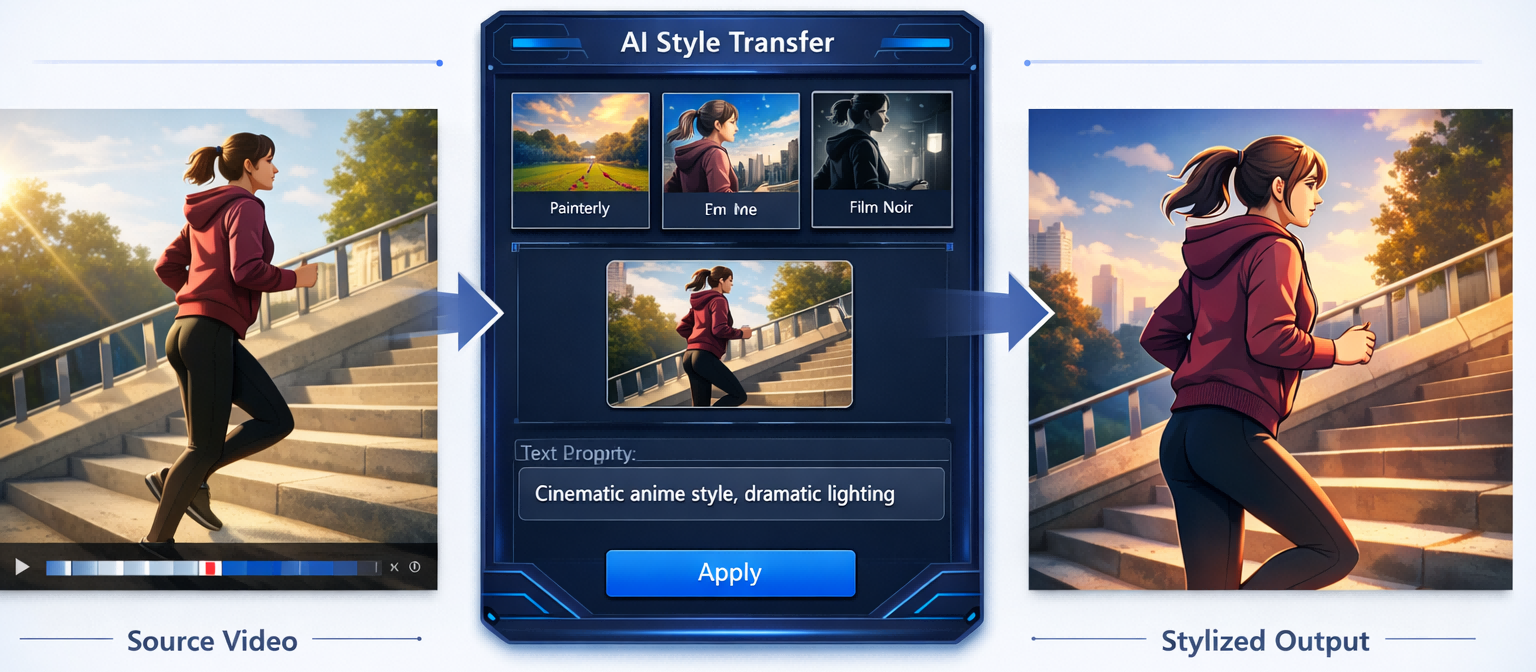
After that, generate one test version and review it like an editor. Check whether the subject stays recognizable, whether the background remains coherent, and whether the chosen style supports the story you are telling. If you want the original soundtrack, enable source audio merge before export. Once you have a strong first result, create a few more variations by changing either the prompt wording or the style reference, not both at the same time.
## **4.Best practices for higher-quality results**
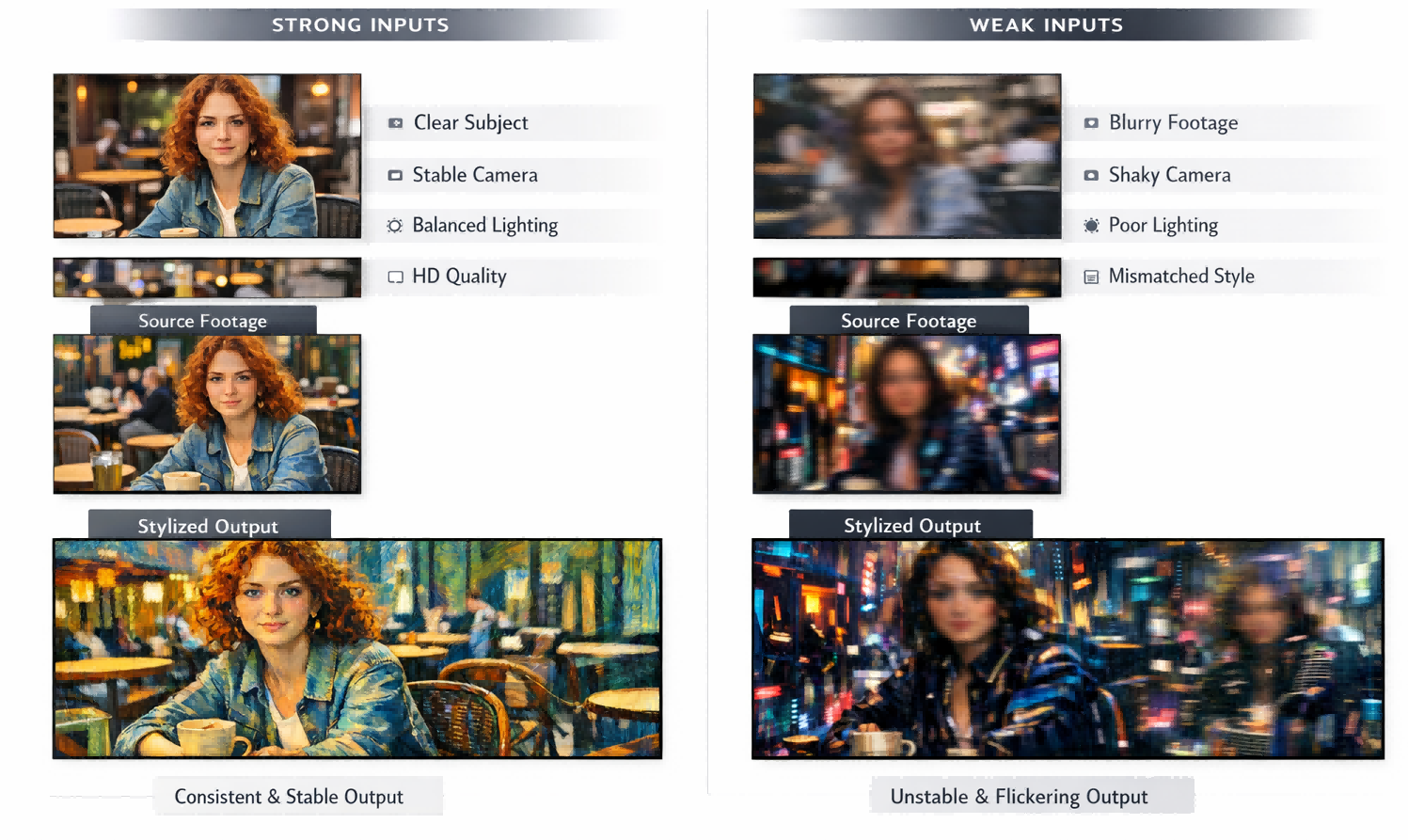
The best results usually come from strong inputs, not longer prompts. Use a video with one clear subject, balanced lighting, and moderate motion. If the camera is extremely shaky or the subject leaves the frame repeatedly, the stylization has to solve too many problems at once. The same goes for very compressed or low-resolution clips.
Choose a style direction that fits the footage. Anime, cinematic grading, cartoon stylization, painterly looks, and branded visual treatments all work better when the underlying motion and composition support them. If you are using a reference image, make sure it represents the palette, texture, and mood you want the whole clip to follow.
For consistency across multiple posts, reuse the same reference image or prompt structure across several clips. That is one of the most practical use cases for creator channels and branded campaigns.
## **5.Where AI video style transfer is most useful**
One obvious use case is turning live-action footage into anime or illustrated content for Shorts, Reels, and TikTok. Another is giving user-generated content a cinematic finish for ads without a heavy post-production pipeline. Music videos are another strong fit because stylization helps create visual hooks, transitions, and mood shifts quickly. Brand teams can also use one style reference across multiple clips to maintain a consistent channel aesthetic.
Video Swap’s own feature page leans into these use cases by highlighting anime conversion, cinematic video stylization, cartoonized shorts, music video visuals, and creator templates. That makes it a natural page to link from the blog with anchors such as AI Video Style Transfer, stylize videos online, or video-to-video AI tool.
**Common mistakes to avoid**
The most common mistake is treating style transfer like a one-click fix for weak footage. If the source video is unclear, heavily blurred, or visually crowded, even a good model may struggle to produce stable stylization. Another mistake is using a reference image that looks attractive on its own but does not match the composition or mood of the source clip.
Prompting can also go wrong. Overloaded prompts often create confused outputs because they ask for too many incompatible aesthetics at once. Keep the prompt specific, visual, and prioritized. Decide what matters most—lighting, texture, linework, color palette, environment mood, or material finish—and build around that core.
## **6.Conclusion**
A useful AI Video Style Transfer Guide should leave readers with one practical insight: the goal is not just to make footage look different. The goal is to make it look intentionally restyled while preserving motion, timing, and scene continuity. That is what separates useful video-to-video AI from gimmicky frame effects.
If you want a simple workflow for that, Video Swap gives users three accessible ways to stylize video: pick a preset, upload a style reference image, or describe the look with a prompt. To try the feature, visit [<u>Video Swap’s AI Video Style Transfer page</u>](https://www.videoswap.app/video-style-transfer) and turn a short source clip into an anime, cinematic, or custom visual style without rebuilding the whole shot manually.
Link: [AI Video Style Transfer](https://www.videoswap.app/video-style-transfer)
AI Video Style Transfer Guide: How to Stylize Footage with Video-to-Video AI
March 13, 2026
Featured Post
Learn AI video style transfer with Video Swap. Turn clips into anime, cinematic, or custom looks while preserving motion, timing, and detail.
video style transfer
Related Posts
Public
Mar 15, 2026
Character Swap vs Motion Control vs Style Transfer: Which AI Video Tool Do You Need?
Compare AI character swap, motion control, and video style transfer to find the right AI video tool for ads, creators, animation, and branded content. Learn what each tool does, when to use it, and how VideoSwap helps you create consistent, high-quality AI videos faster.
Public
Mar 14, 2026
Best Prompts for AI Video Style Transfer
Discover the best prompts for AI video style transfer. Learn how to write anime, cinematic, and cartoon prompts in VideoSwap for smooth, consistent video results.
Public
Mar 14, 2026
How to Turn a Real Video into Anime with AI
Learn how to turn a real video into anime with AI using video style transfer. Discover prompts, workflow tips, and VideoSwap for smooth, consistent results.