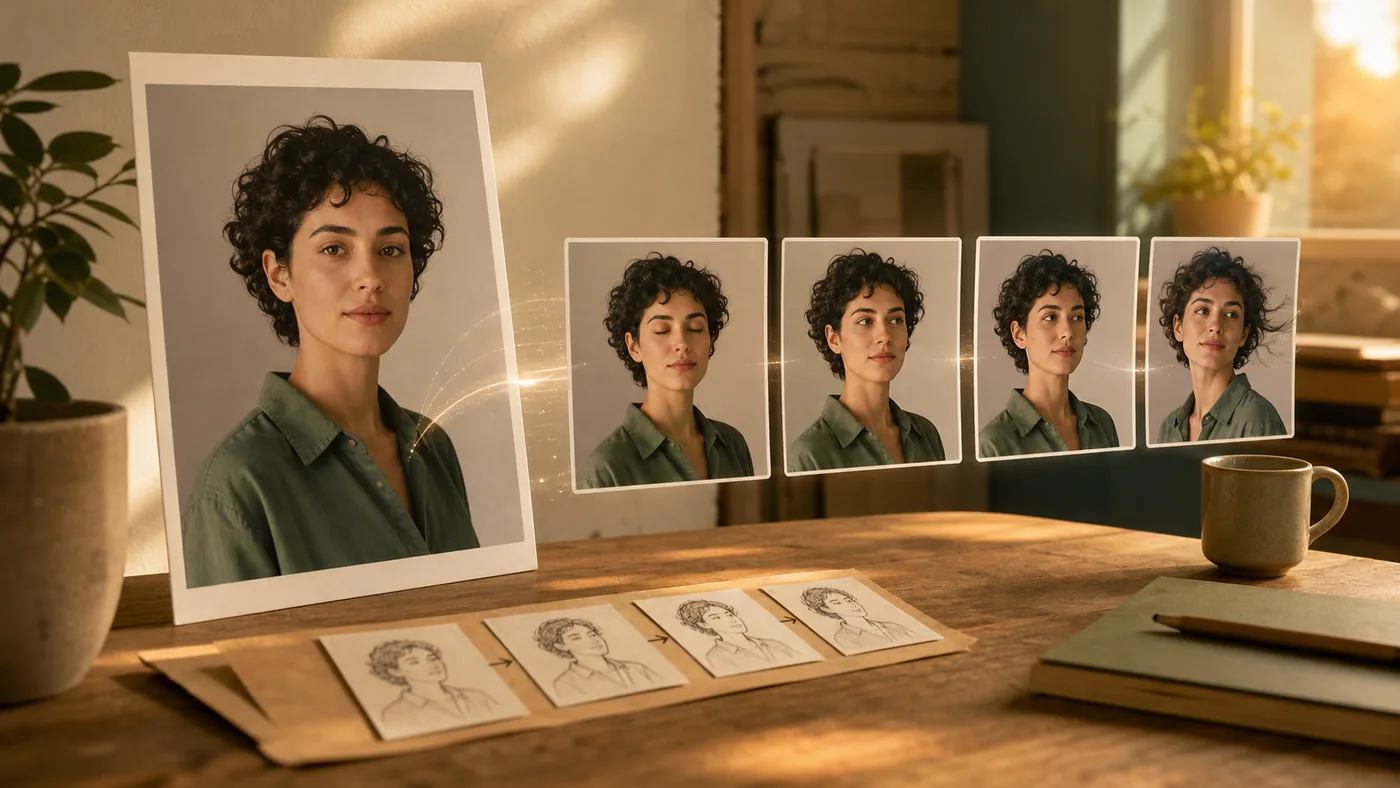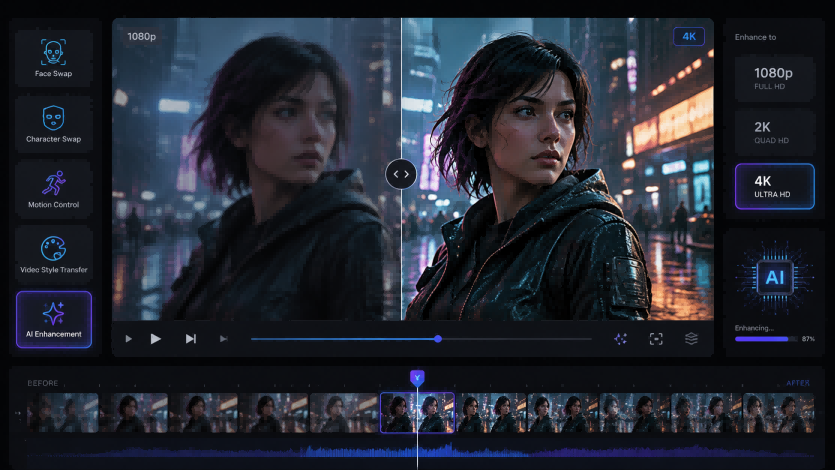
A single photo can now become a moving video without a camera crew, timeline editor, or traditional animation workflow. AI photo animation tools can add facial movement, environmental motion, camera movement, and even a complete performance to a still image.
The important question is no longer whether AI can animate a photo. It is which kind of control you need.
Some tools generate motion from a written prompt. You upload an image, describe what should happen, and let the model create the movement. Other tools use a reference video as a motion blueprint, transferring a specific gesture, expression, or body performance to the person or character in your image.
Both methods are useful, but they solve different creative problems. This guide explains how prompt-based photo animation and reference-video motion control work, when to choose each method, and how to prepare better inputs for more natural results.
What Does It Mean to Animate a Photo with AI?
Animating a photo with AI means generating new video frames from a single still image. The model analyzes the subject, background, lighting, depth, and composition, then predicts how the scene could change over time.
Depending on the tool and workflow, AI may animate:
- facial expressions, blinking, and head movement
- hair, clothing, water, clouds, smoke, or background elements
- camera pans, zooms, tilts, and push-in shots
- hand gestures, dance moves, or full-body actions
- stylized motion for illustrations, mascots, and fictional characters
Unlike a simple slideshow effect, generative photo animation attempts to create new visual information. A person can turn their head, a landscape can gain moving clouds, or an illustrated character can perform a gesture that was not present in the source image.
The quality of the result depends on the input image, the motion guidance, and how much the model must invent.
Method 1: Generate Motion from a Text
Prompt
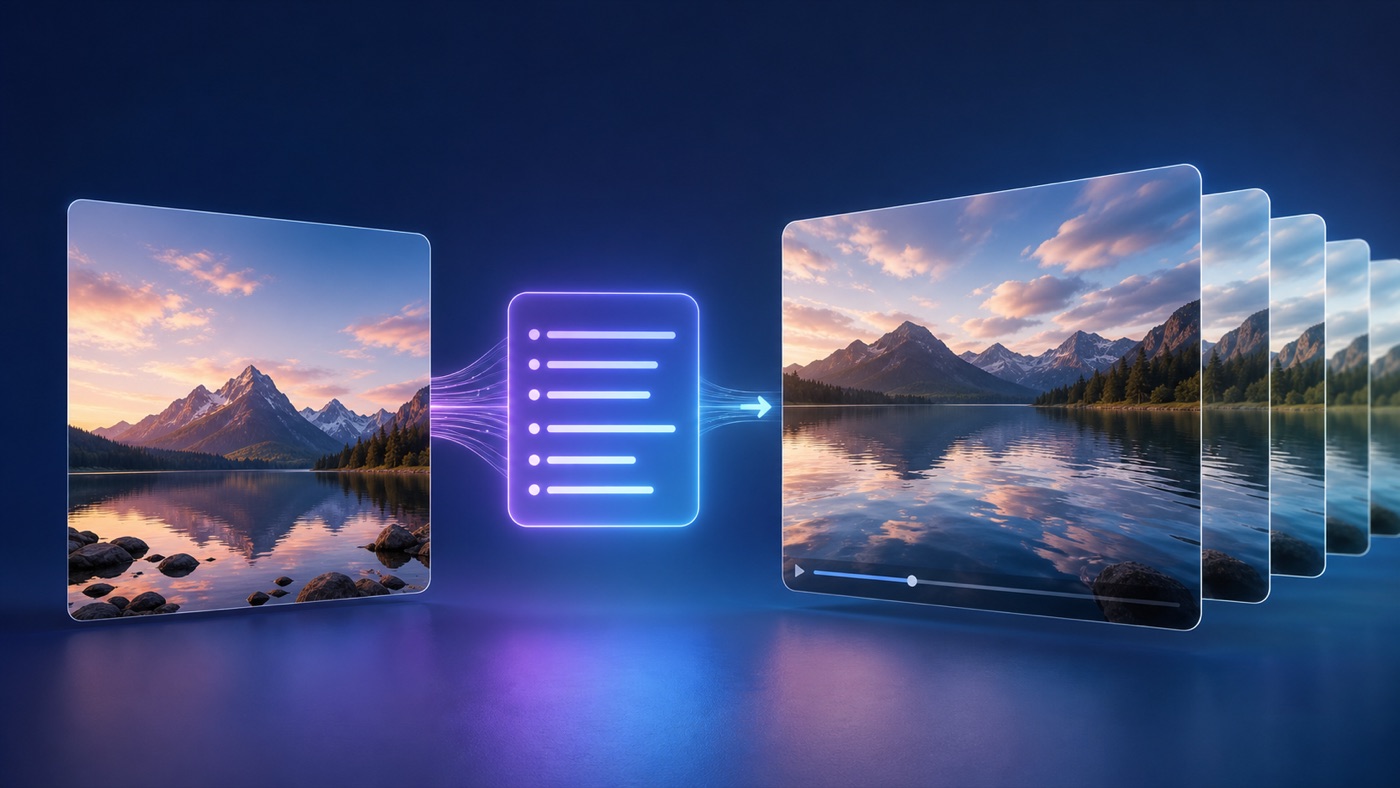
Prompt-based photo animation is the simplest workflow. You provide one image and describe the motion you want in natural language.
For example, you might write:
The camera slowly pushes in as the subject smiles naturally and looks toward the window. Soft wind moves the hair.
The AI uses the photo for visual identity and composition, then interprets the prompt to generate timing, movement, and camera behavior.
If you want a straightforward prompt-based workflow, a photo to video AI tool lets you upload a still image, describe the motion you want, and create a short video without preparing a reference performance.
When prompt-based animation works best
This approach is useful when:
- you want to test a visual idea quickly
- the motion can be described clearly in one or two sentences
- you want atmospheric movement rather than an exact performance
- you are animating landscapes, products, artwork, or social posts
- you do not already have a reference video
Prompt-based generation gives the model creative freedom. That makes it especially effective for gentle camera motion, subtle expressions, moving backgrounds, and cinematic effects.
It is also convenient for marketing teams and creators who need several variations. You can keep the same source image and test different prompts, such as a slow camera orbit, a close-up push, drifting fog, or a brighter expression.
The trade-off: interpretation instead of exact control
A text prompt describes an intention, not a precise performance.
Words such as “wave naturally” or “turn slowly” leave many details open to interpretation. The model decides the exact hand path, speed, timing, body movement, and camera response. Two generations from the same image and prompt may look different.
That variation can be useful during creative exploration. However, it is less suitable when you need a particular dance, gesture, speaking rhythm, or repeatable movement.
Method 2: Transfer Motion from a Reference Video
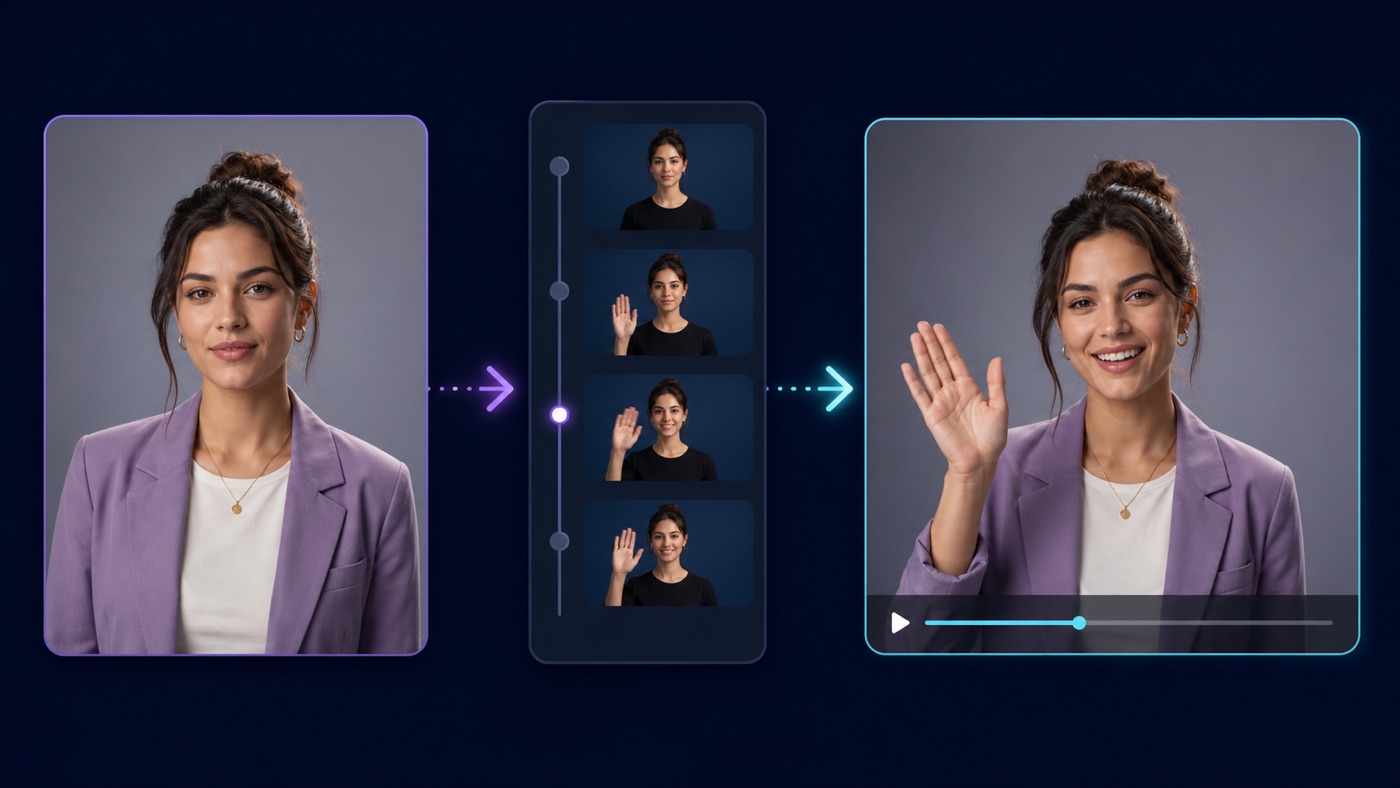
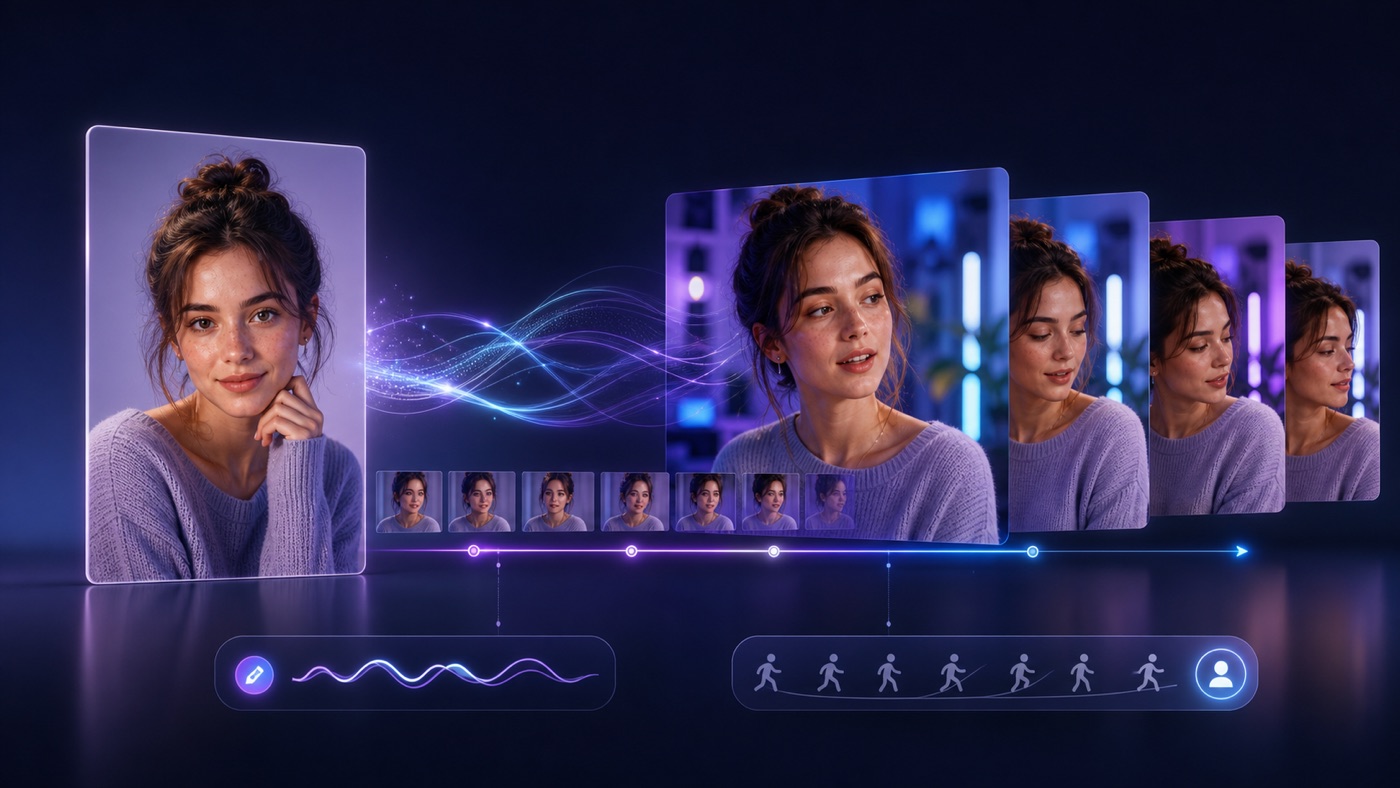
Reference-video motion control uses a different form of guidance. Instead of asking the model to invent the movement from text, you upload a video containing the performance you want.
The reference clip becomes a motion blueprint. The AI analyzes pose changes, expressions, timing, and body movement, then applies that performance to the character in your still image.
On VideoSwap's AI Motion Control tool, the workflow uses a character image together with a reference video. This is useful when the exact motion matters more than open-ended generation.
When reference motion works best
Choose motion control when:
- you need a specific gesture, dance, or body action
- timing needs to follow an existing performance
- you are animating a mascot, avatar, illustration, or fictional character
- you want multiple characters to perform a similar movement
- a text description would be too vague or complicated
For example, describing choreography in a prompt is difficult. A short reference clip communicates the timing, direction, posture, and rhythm directly. The model has less motion to invent because the performance already exists.
This workflow can also help teams produce character-based content without filming the final character. A creator can record a simple performance, then transfer it to a brand mascot or illustrated spokesperson.
The trade-off: stronger input requirements
Motion transfer requires two compatible inputs.
The framing of the character image should broadly match the reference video. A close-up portrait is not a good match for a full-body dance clip because the model must invent the missing body. Similarly, a distant full-body character image may not provide enough facial detail for a subtle expression performance.
Reference clips should also be short and visually clear. Heavy occlusion, rapid cuts, multiple people, or a subject repeatedly leaving the frame can make the motion harder to transfer.
Text Prompts vs Motion Control: What Is the Difference?
The simplest distinction is creative freedom versus performance control.
| Question | Text-prompt animation | Reference-video motion control |
|---|---|---|
| Motion source | Written description | Existing video performance |
| Best for | Creative and atmospheric motion | Specific gestures and actions |
| Setup | One image and a prompt | One image and one reference video |
| Repeatability | Results may vary | Timing follows the reference more closely |
| Camera movement | Easy to describe | Usually inherited or influenced by the clip |
| Full-body action | Less predictable | Better when the reference is clear |
| Creative exploration | Strong | More directed |
Neither method is universally better.
Use a text prompt when you know the visual mood but do not need an exact performance. Use reference motion when you can show the model what should happen more clearly than you can describe it.
How to Choose the Right Workflow
Start by asking what must remain predictable in the final video.
Choose a text prompt when the idea matters more than exact timing
A prompt is usually enough for requests such as:
- “Slowly zoom toward the product while light moves across the surface.”
- “Make the water ripple and the clouds drift gently.”
- “The subject blinks, smiles slightly, and turns toward the camera.”
- “Create a subtle handheld camera feeling.”
These directions establish mood and movement without requiring a fixed sequence.
Choose reference motion when the performance matters
A reference clip is more suitable for requests such as:
- reproducing a recognizable dance move
- matching a wave, point, or presentation gesture
- animating a mascot with an actor's performance
- following a specific facial-expression sequence
- maintaining the rhythm of an existing short-form video
If you find yourself writing a long prompt to explain where every hand, shoulder, and head movement should happen, a reference video is probably the clearer input.
Tips for More Natural AI Photo Animation
Regardless of the workflow, better source material gives the model a more stable foundation.
1. Start with a sharp image
Use an image with clear subject details and minimal compression. Facial features, clothing edges, and hands should be easy to see. AI can generate new frames, but it cannot reliably reconstruct every detail from a heavily blurred source.
2. Keep one main subject
A photo with one obvious subject is easier to animate than a crowded scene. Multiple faces or overlapping bodies can create ambiguity about which person should move.
3. Match the crop to the intended action
Use a portrait crop for facial expressions and head movement. Use a half-body image for hand gestures. Use a full-body image when the legs, posture, or complete movement must be visible.
4. Describe visible motion
For prompt-based generation, write what the viewer should see. “The camera slowly moves closer” is clearer than “make it dramatic.” Mention the subject action, environmental motion, and camera movement separately when all three matter.
5. Keep reference clips focused
For motion transfer, trim the video to the exact action you want. A five-second clip containing one clear gesture is usually more useful than a longer clip with several unrelated actions.
6. Avoid changing everything at once
Test one controlled variation at a time. If the first output is unstable, simplify the prompt, reduce the movement, use a cleaner image, or select a shorter reference clip. Small changes make it easier to identify what improves the result.
7. Review motion, not only individual frames
A video can look sharp in a paused frame but still feel unnatural during playback. Watch for flicker, sudden identity changes, unstable hands, background warping, and inconsistent motion speed.
A Practical Two-Tool Workflow
Prompt-based generation and motion control can complement each other.
Start with prompt-based photo-to-video generation when you want to explore several visual directions quickly. Test camera movement, atmosphere, expressions, and environmental effects. This helps you discover what kind of animation fits the image.
When you need a repeatable or more specific performance, switch to reference-video motion control. Record or select a clean reference clip, match its framing to the character image, and use the movement as direct guidance.
The choice depends on what information you already have:
- If you have an image and an idea, start with a prompt.
- If you have an image and a performance, use motion control.
- If you are still exploring, generate several short prompt-based variations first.
- If you need precise timing, prepare a focused reference clip.
Final Thoughts
AI offers more than one way to bring a still image to life. Text prompts are fast, flexible, and well suited to creative motion that can be described in a sentence. Reference-video motion control is more deliberate and works best when you need the generated character to follow a particular action or performance.
The best workflow is the one that gives the model the clearest form of guidance. Describe the motion when the idea is simple. Show the motion when timing and body movement matter.
Begin with a clean image, keep the first test short, and review the result as a moving sequence rather than a collection of individual frames. With the right input and guidance method, a single photo can become a useful video for social content, ads, product storytelling, character animation, and creative experiments.