Learn how to make AI-edited videos look sharper after face swap, character swap, motion control, or video style transfer. Improve clarity, reduce blur, and prepare your clips for HD, 2K, or 4K export.
video face swap
character swap
video style transfer
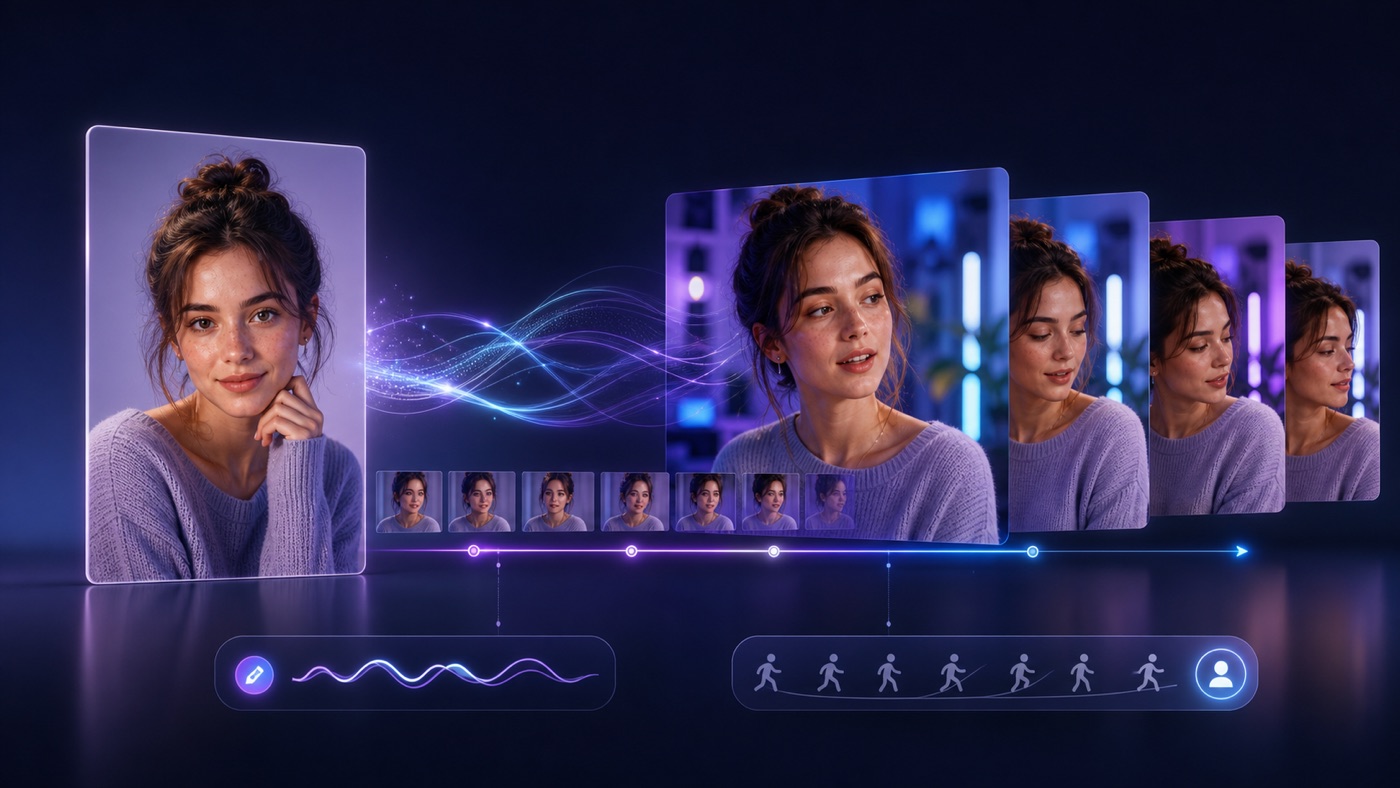
AI video editing can change a clip in powerful ways. You can swap a face, replace a full character, animate a still image with motion control, or restyle a video into anime, cinematic, cartoon, or branded visuals.
But after the creative edit is finished, many creators notice a second problem: the video may still look soft, compressed, blurry, or not sharp enough for YouTube, TikTok, ads, product demos, or large screens.
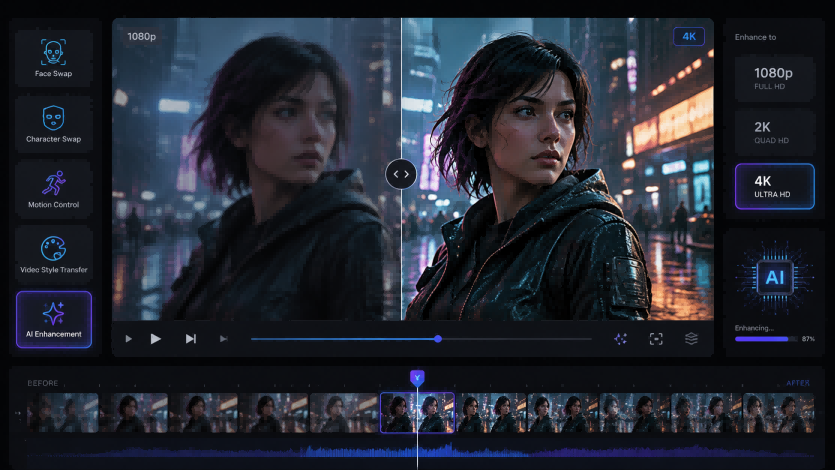
That is where AI video upscaling becomes useful. VideoSwap helps you create the transformed video. Then an AI video upscaler can help improve the final visual quality by sharpening details, reducing blur, cleaning compression artifacts, and preparing the clip for higher-resolution export.
## 1. Why AI-edited videos sometimes look soft
AI video tools usually focus on the main transformation first.
A face swap tool focuses on matching identity, expression, lighting, and face movement. A character swap tool focuses on replacing the visible person while keeping the original performance and scene. A motion control tool focuses on transferring movement from a reference video to a still image. A style transfer tool focuses on changing the visual look while preserving motion and timing.
Those are creative tasks. They do not always solve every video-quality issue at the same time.
Your final clip may still look soft if the original video was low resolution, heavily compressed, recorded in poor lighting, downloaded from social media, or exported multiple times. Even a strong AI transformation can look less professional if the source footage already contains blur, noise, pixelation, or compression blocks.
## 2. What AI video upscaling does after editing
AI video upscaling is different from basic resizing.
Traditional resizing mainly stretches the frame. AI upscaling analyzes the video frame by frame and tries to improve visible details, edges, textures, and clarity. It can help make a low-resolution or compressed clip look cleaner on HD and 4K screens.
This is especially useful after AI video editing because the final result often needs to be published somewhere that rewards clarity: short-form platforms, YouTube, landing pages, product demos, ad creatives, client previews, and portfolio videos.
If your AI-edited clip already has the right character, motion, or style, upscaling can be the final finishing step.
For creators who want to upscale video to HD, 2K, or 4K online, try the [AI video upscaler](https://www.videoupscale.net) after exporting your VideoSwap result.
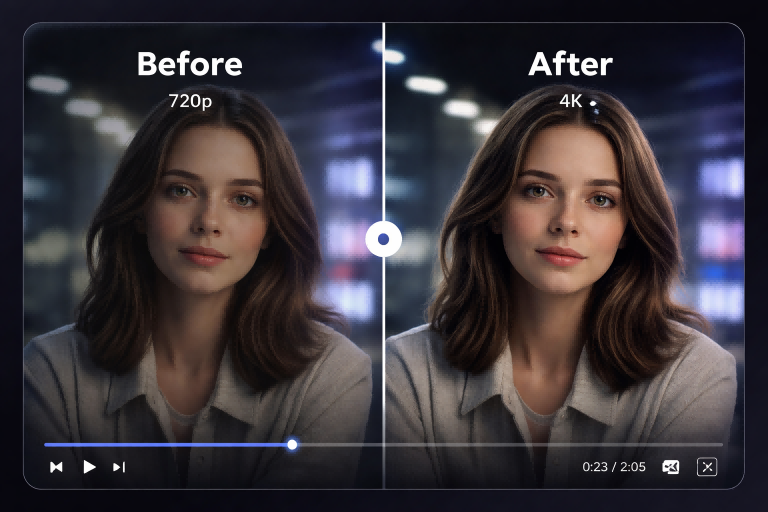
## 3. When should you upscale an AI-edited video?
You do not need to upscale every video. Use it when the clip has a clear reason to benefit from extra quality.
### Use AI upscaling after face swap when:
- the face looks correct, but the overall clip feels low-resolution
- the source video was downloaded from a compressed social platform
- the final video will be shown on desktop, TV, or a landing page
- the face area is acceptable, but the full frame looks soft
Face swap quality depends heavily on identity consistency and expression stability. Once those look right, upscaling can help the whole video feel cleaner and more polished.
### Use AI upscaling after character swap when:
- the replaced character looks good, but outfit edges or body details look soft
- the ad creative needs to look sharper for client review
- you are preparing several localized video variants
- the original reference video was not high resolution
Character swap is often used for ads, creator content, and alternate versions of the same scene. In those cases, sharper export quality helps each version feel more production-ready.
### Use AI upscaling after motion control when:
- your animated image has good motion, but the output needs more clarity
- the original image was small or slightly blurry
- you are turning a mascot, illustration, or portrait into a polished short video
- the video will be reused across multiple social channels
Motion control can make a still image move. Upscaling can help the final animation look less compressed and more suitable for publishing.
### Use AI upscaling after style transfer when:
- the new style looks good, but fine details are lost
- the video has visible compression artifacts
- you want a cleaner anime, cinematic, cartoon, or branded look
- the final export needs to look sharper on larger screens
Style transfer changes the visual language of a clip. Upscaling can help preserve that style while improving perceived sharpness and reducing unwanted softness.
## 4. A simple workflow: edit first, upscale second
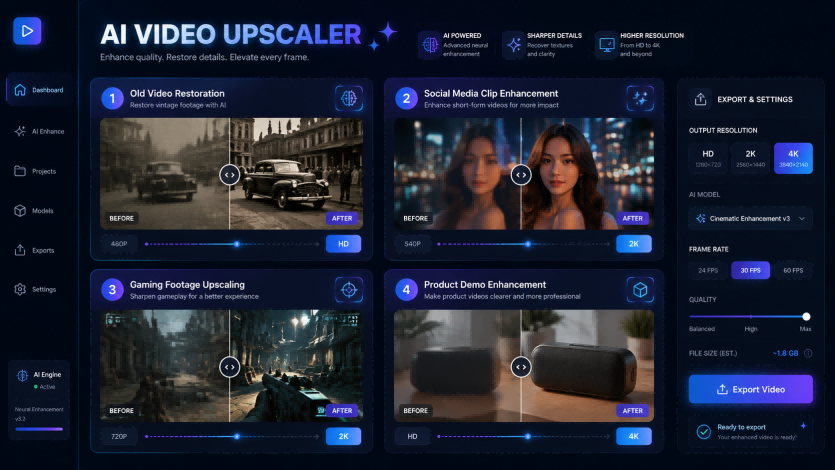
The easiest workflow is:
### Step 1: Create the AI-edited video in VideoSwap
Start with the creative transformation. Use face swap, character swap, motion control, or video style transfer depending on your goal.
If you want to change who appears in the video, use face swap or character swap. If you want to animate a still character image, use motion control. If you want to keep the clip but change the look, use style transfer.
### Step 2: Review the result before upscaling
Before improving resolution, check the creative output first.
Look at identity, motion, timing, lighting, body consistency, style consistency, and frame-to-frame stability. Upscaling can improve clarity, but it should not be used to hide a wrong face, a mismatched character, or an unstable style result.
If the creative result is not right, regenerate or adjust the input first.
### Step 3: Upload the exported clip to an AI video upscaler
Once the edit looks right, upload the final video to an AI video upscaler. Choose the output quality based on where the clip will be published.
For quick social content, 1080p may be enough. For product demos, ads, YouTube, portfolio pieces, archive footage, or large-screen display, 2K or 4K may be a better choice.
### Step 4: Check sharpness, motion, and naturalness
A good upscaled video should look clearer, not overprocessed.
Watch for natural motion, stable edges, readable details, and reduced blur. Avoid making faces, hands, text, or textures look too artificial. The best result is usually the one that feels sharper while still looking natural.
## 5. Tips for better results before upscaling
Upscaling works best when the input is already reasonably clean. Before you process the final video, try these tips:
Use the highest-quality source video available. Avoid re-downloading and re-uploading the same clip many times. Keep the subject visible and well lit. Avoid extreme motion blur if possible. Export your AI-edited video once, then upscale the exported version.
For face swap and character swap, clear facial details and stable framing usually help. For motion control, the still image and reference motion should match well. For style transfer, avoid overly dark or extremely noisy footage if you want a clean final look.
The goal is simple: give the upscaler a video that already has a strong creative result, then let it improve clarity and resolution.
## 6. Best use cases for AI video upscaling after VideoSwap
AI upscaling is especially useful for creators and teams that publish video in many places.
Short-form creators can sharpen clips before posting to TikTok, Reels, or Shorts. Marketing teams can improve product demos, UGC-style ads, and localized ad variants. Gaming creators can upscale older or compressed gameplay clips. Educators and course creators can make tutorial clips easier to watch. Brand teams can prepare clearer videos for websites, landing pages, and presentations.
It is also useful for old footage or archived clips. If you are using VideoSwap to restyle, localize, or recreate video content, upscaling can help make the final version feel less dated and more suitable for modern screens.
## 7. Common mistakes to avoid
The biggest mistake is upscaling too early.
If the face swap is wrong, the character replacement is inconsistent, or the style transfer does not match your goal, upscaling will only make those issues sharper. Fix the creative edit first, then upscale.
Another mistake is choosing 4K for every clip. Higher resolution is useful, but it also costs more processing time and credits. For many social clips, 1080p is enough. Use 4K when the video will be displayed on large screens, used in professional projects, or reused across multiple channels.
Finally, do not expect AI upscaling to recover details that are completely missing from the original. It can reduce blur, sharpen visible structures, and clean compression artifacts, but the best results still come from good source footage.
## 8. Conclusion
AI video creation does not end when the face, character, motion, or style is generated. For many creators, the final quality pass is just as important.
Use VideoSwap when you want to transform the content of a video: swap faces, replace characters, animate images, or restyle footage. Then use an AI video upscaler when you want the final export to look sharper, cleaner, and more ready for HD, 2K, or 4K publishing.
If your AI-edited video already looks right but still feels blurry, compressed, or too low-resolution, upscale it with [VideoUpscale.net](http://VideoUpscale.net) before posting or delivering the final version.
### Related Posts
- [Character Swap vs Motion Control vs Style Transfer: Which AI Video Tool Do You Need?](https://www.videoswap.app/blog/Character-Swap-vs-Motion-Control-vs-Style-Transfer)
- [Best Prompts for AI Video Style Transfer](https://www.videoswap.app/blog/Best-Prompts-for-AI-Video-Style-Transfer)
- [How to Replace a Character in a Video with AI](https://www.videoswap.app/blog/how-to-replace-a-character-in-a-video-with-ai)
How to Make AI Videos Look Sharper After Face Swap, Character Swap, or Style Transfer
May 14, 2026
Learn how to make AI-edited videos look sharper after face swap, character swap, motion control, or style transfer using AI video upscaling
ai tools
Related Posts
Public
Sep 1, 2026
How to Make AI Photo Animation Look Natural
A practical workflow for choosing a source image, writing motion prompts, controlling camera movement, and fixing common AI photo-animation artifacts.
Public
Jul 24, 2026
How to Animate a Photo with AI: Text Prompts vs Motion Control
Learn how to animate a photo with AI using text prompts or reference-video motion control, and choose the right workflow for your project.